
From mobile-friendly access to personalized feedback, Canvas gives online learners the tools they need to succeed on their schedule.
When you’re a working adult exploring online programs, you’re not just asking, “What will I learn?” You’re also asking, “Can I realistically manage this with everything else in my life?”
Canvas—the university’s learning management system—is a big part of the answer. Canvas is the online hub where you access your courses, connect with instructors and classmates, submit assignments, and track your progress. It’s designed to support real people with real responsibilities, not just full-time students with empty calendars.
Natalie Upson, PhD, director of online learning in the Center for Excellence in Learning and Teaching, says, “Over the past year, students and faculty alike have enjoyed using Canvas because of its intuitive design and focus on creating a positive student experience.”
Here’s how Canvas helps make the CUW online experience clearer, more flexible and more student-friendly from your first login to graduation.
Clear course design means less guesswork, more learning

When you log into Canvas at CUW, you don’t have to dig through email chains and scattered links to figure out what to do next. Most courses are organized, with many others being redesigned, into modules that guide you step by step.
- Modules organize your learning. Courses are broken into weekly or thematic units so you can see readings, videos, discussions and assignments in one place.
- Clear instructions and due dates. Each activity includes directions, expectations, and a due date to help you plan ahead.
- Consistent layout across courses. Most CUW online courses follow similar structures in Canvas, so once you learn your way around one course, you’ll feel at home in the others.
This clarity reduces stress and uncertainty. You can quickly answer questions such as, “What should I be working on this week?” and “How does this assignment fit into the bigger picture?” Then you can focus on learning.
Mobile-friendly learning for real-life schedules
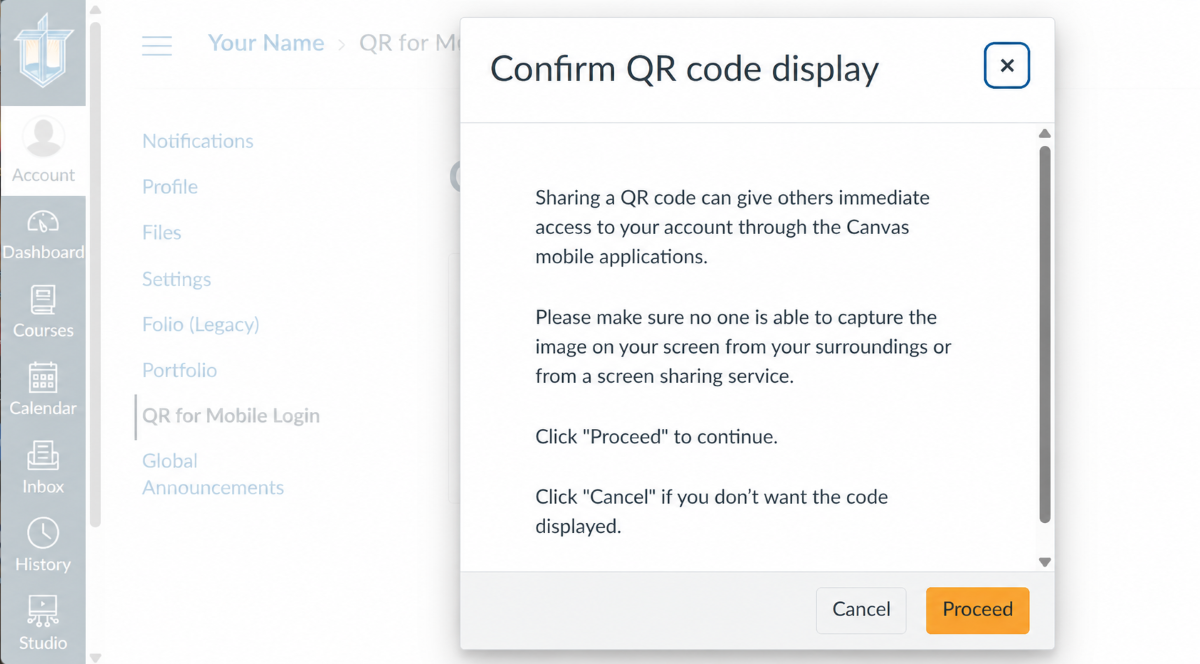
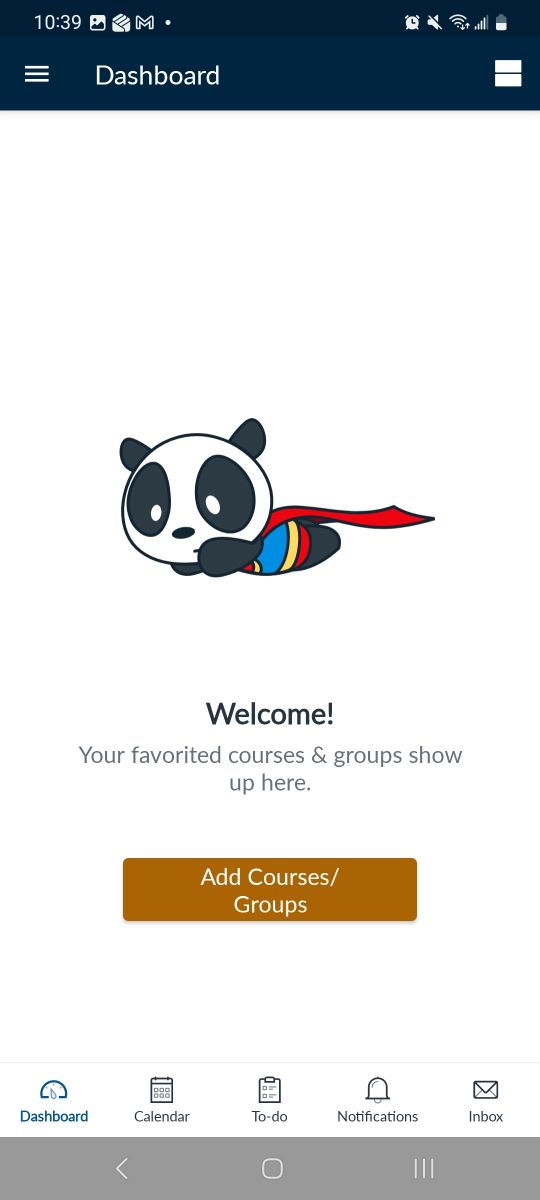
For many online students, learning happens between shifts, after the kids are in bed or during a lunch break. Canvas supports that kind of real-life schedule.
- Canvas student app. Review content, check announcements, participate in discussions, and view grades from your phone or tablet.
- On-the-go notifications. Choose push notifications for new grades, due date changes and instructor announcements so you’re never caught off guard.
- Learn in short bursts. Waiting for an appointment? You can watch a recorded lecture, contribute to a discussion or review course materials from your mobile device.
Instead of requiring you to be at a desk at a specific time, Canvas helps you make progress whenever your schedule allows.
Fast, helpful feedback that keeps you moving forward
Feedback is one of the most important parts of learning, especially online, where you’re not in a physical classroom. Canvas makes feedback easier to access and act on.
- Centralized gradebook. View grades, instructor comments, and your overall standing in each course at a glance.
- Detailed comments and rubrics. Many instructors use rubrics and online comments so you know what you did well and where you can improve.
- Multiple feedback formats. Instructors can leave text, audio or video feedback, creating a more personal learning experience.
Rather than waiting until the end of a unit to understand your progress, you receive ongoing feedback that helps you make adjustments while there’s still time to improve.
Inclusive access for every learner
CUW is committed to creating a learning environment where all students can participate fully. Canvas supports that commitment through accessibility features and inclusive course design.
- Screen reader-friendly layouts. Canvas works with assistive technologies used by students with visual impairments.
- Captioned and downloadable content. Many courses include captioned videos and downloadable resources that support different learning preferences.
- Flexible formats. Instructors can offer content through text, video and interactive activities, allowing students to engage in ways that fit their learning styles.
Upson says, “To better support all learners, CUW has integrated Pope Tech into Canvas. This accessibility tool allows students to instantly convert Canvas pages and course documents into alternative formats, including Braille, MP3 audio, Word and PDF files. Whether you have specific learning needs or simply want to study on the go, Pope Tech helps you access course materials in the format that works best for your learning style and schedule.”
If you need accommodations—or simply prefer learning in a particular way—Canvas helps create a more accessible learning experience.
A sense of community, even at a distance
Online learning shouldn’t feel isolating. Canvas includes built-in tools that help you connect with your peers and instructors, not just course content.
- Discussions that feel like real conversations. Participate in text-based and multimedia discussions where classmates share experiences, ask questions, and respond to one another.
- Announcements and messaging. Instructors use announcements to share updates, and the Canvas Inbox allows direct communication with instructors and classmates.
- Group work and peer review. Many courses use collaboration and peer-review tools that help students practice workplace-ready communication skills.
These tools support CUW’s mission of providing a caring, Christ-centered community, even when students and faculty are spread across time zones.
Upson adds, “Every course at CUW includes a dedicated Pray & Chat discussion board, creating space for students to connect spiritually with their peers. Students can post prayer requests, share praise reports and lift up classmates in prayer, fostering a supportive faith community within each course.”
3 tips to get the most from Canvas
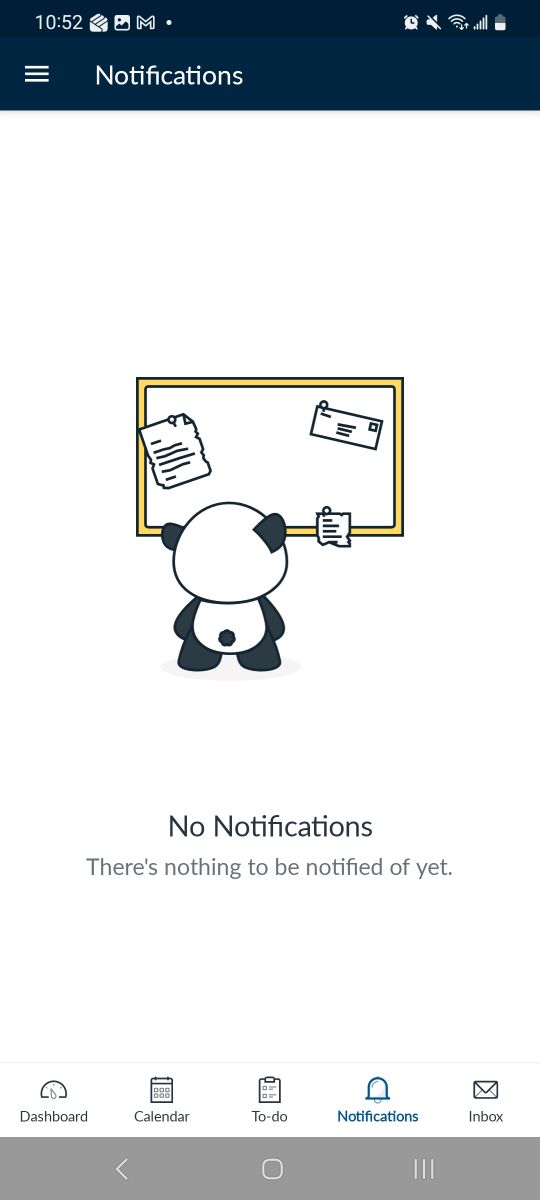
If you decide to enroll in a CUW online program, a few simple habits can help you make the most of Canvas from day one.
1. Customize your notifications
Spend a few minutes adjusting your notification settings so you receive alerts about grades, announcements, and due date changes in the way that works best for you—email, push notifications or both.
2. Make the calendar your home base
Check the Canvas Calendar at the start of each week and add important dates to your personal calendar. Seeing all your course deadlines in one place can make it easier to balance school, work and family commitments.
3. Use the mobile app intentionally
The app is perfect for quick check-ins, discussion participation and short readings. For longer tasks, such as writing major papers or taking exams, use a laptop or desktop whenever possible for the best experience.
These small habits can help you stay organized and feel more in control throughout the term.
CUW’s online undergraduate and graduate classes are offered year-round, with students beginning courses in two eight-week mini-terms during the spring, summer and fall semesters for most programs.
Take the next step and connect with Concordia University’s admissions team by visiting CUW Online Undergraduate Admissions for undergraduate degrees or CUW Graduate Admissions for master’s degrees and licensure programs, or call 262-243-4300.
Want in?
Concordia University Wisconsin is a Lutheran higher education community committed to helping students develop in mind, body and spirit for service to Christ in the Church and the world.